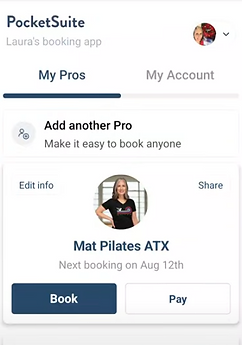
How to Use PocketSuite for Your Pilates Schedule
Tips for Booking Group Classes and Scheduling Private and Semi Private Studio Appointments
How to Videos for PocketSuite to Manage Your Mat Pilates ATX Group Class and Private Studio Schedule
Why I Chose PocketSuite for Booking, Scheduling
I chose PocketSuite because it works three ways: mobile browser, desktop browser and app.
Downloading the app has advantages which you'll see in these videos.
BUT, if you do not use the app, you can book classes from your phone browser or your desktop. Save Booking Link to your favorites, then sign in as a "returning client." Your package is available there, or you can purchase a new one when you click Studio Appointments or Group Classes.
1. How to See Studio Availability and Mat Pilates ATX Schedule
When you click the Calendar Icon in the bottom corner of PocketSuite, you can see group classes on different days, Mon-Fri.
But how do you see availability for studio appointments such as private Pilates or a semi-private duet session?
In this video, you will see all available appointments and how to sign up:
https://youtube.com/shorts/l3MVUHd09hM?feature=share
But wait, there's more!
2. How to Book Multiple Classes
Did you know that deciding when to exercise and scheduling it is the secret sauce for a successful new habit? That's because we get a hit of satisfaction (and dopamine) when we schedule our class, and then, when we follow through.
For example, let's say that you want to sign up for all of your summer mat Pilates classes at the same time. This video shows you how:
https://youtube.com/shorts/PqOrgzs4_DM?feature=share
You can do this for any type of appointment: group classes, private sessions, semi private sessions and reformer duet classes.
3. Difference Between Calendar Icon vs. Booking Menu
There are two paths to seeing the Mat Pilates ATX schedule: the Calendar Icon -- in which you can see different types of classes and appointments -- and the Booking Menu, in which you see only the appointment or class that you want. For example, if you only want to see Mat Classes, you'll click Group Classes and choose "at Circle C - Mat Pilates Class." Virtual classes? Click "Live Virtual Classes."
Another way to think about it: the calendar is the "big picture" of the day, week or month. The Booking Menu is close up lens to see exactly what you want -- e.g., the next available private or group class.
https://youtube.com/shorts/GRhnwIDU_WA?feature=share
4. How Many Sessions or Group Classes Do I Have Left?
How to See Your Active and Expired Packages
When you keep track of your classes, you also keep track of your progress! Nothing matches the satisfaction of the effort you put in to schedule, go to class, and feel better after Pilates.
When you want to know how many sessions are left in your package or when your sessions were applied, this video explains the "My Account" tab.
https://youtube.com/shorts/qLm4MAVM9v4?feature=share
5. How Do I Cancel My Class or Studio Appointment?
You're also empowered to change your schedule by canceling and rescheduling using app or via your phone. In the app, go to My Account and click on Bookings, then click the appointment that you want to change. If you're using your phone, find you your text confirmation (it will come from 512-361-4346) and click the link. It gives you an option to cancel there.